Campaigns
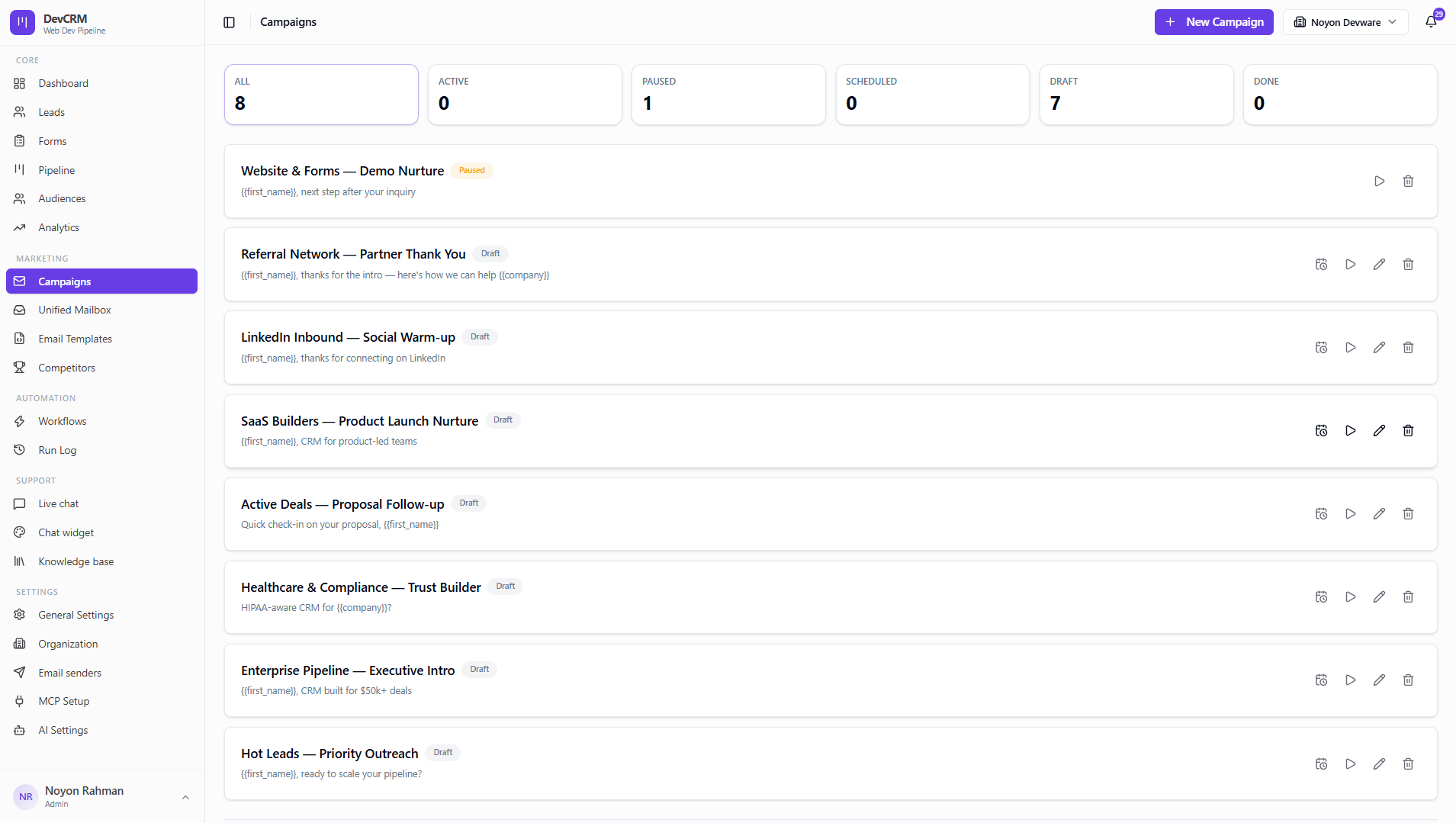
Build email campaigns against an audience: pick a sender, write or generate emails, add follow-ups, then send or schedule.
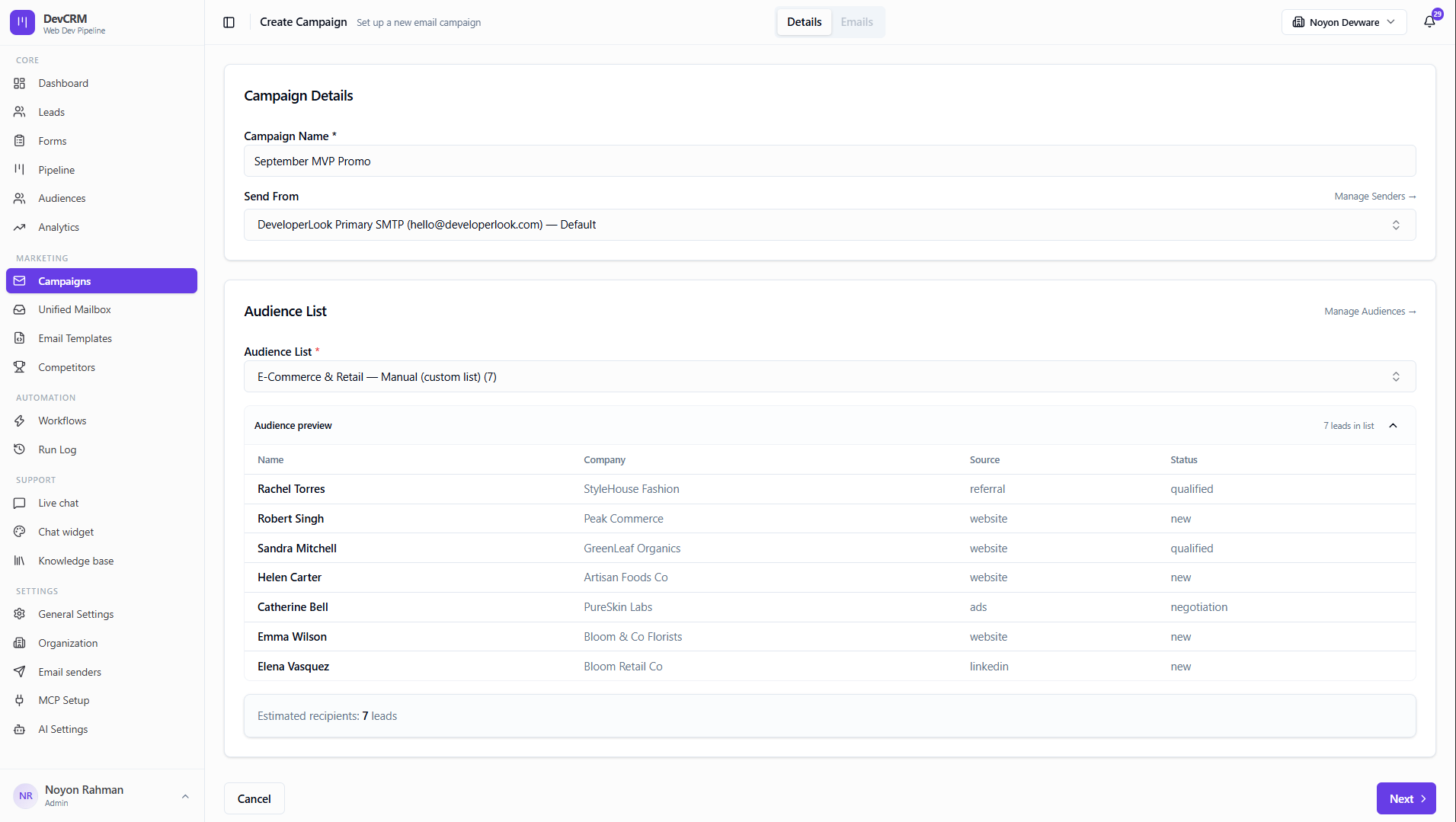
Create a campaign — Details
Step 1: Details tab
Click Create Campaign. On Details, name the campaign, choose Send From, and select an Audience List. Preview estimated recipients before continuing.
Campaign Name
Internal label for your team (e.g. September MVP Promo).
Send From
Connected email sender. Use Manage Senders if none are listed.
Audience List
Target list. Manage Audiences opens the Audiences page.
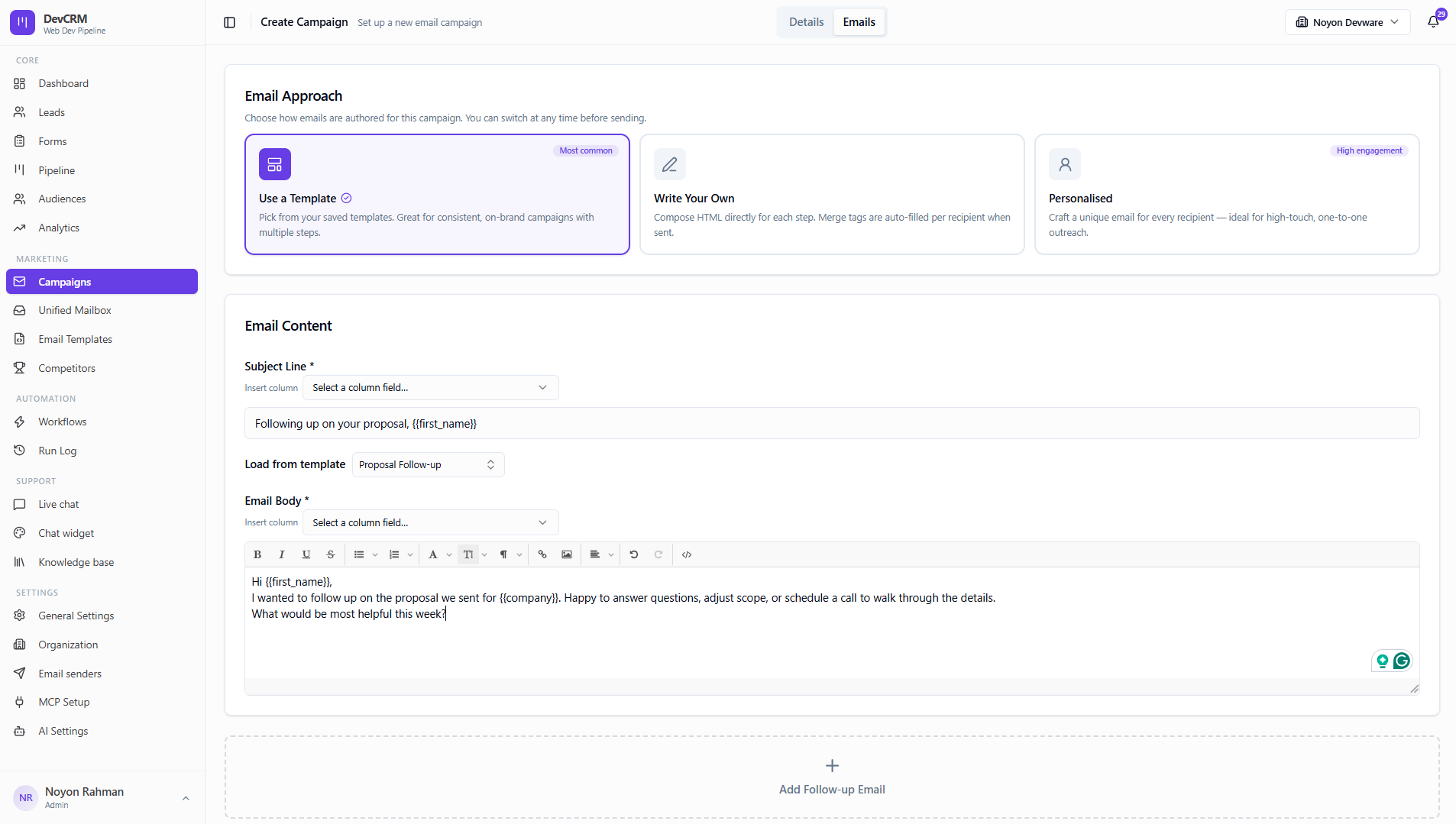
Emails tab — choose an approach
Use a template
Pick an existing Email Template for subject and body.
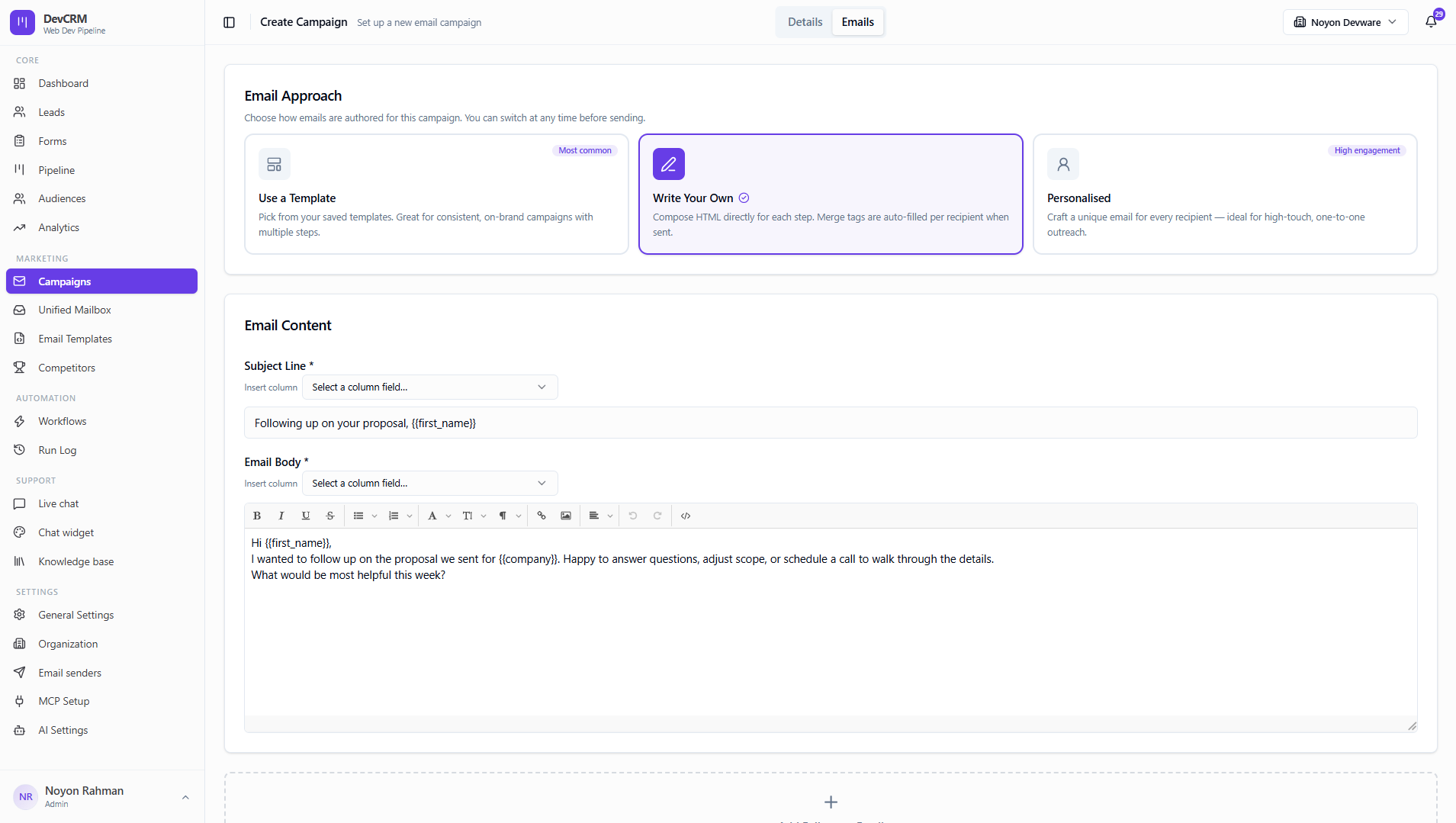
Write your own
Compose subject and HTML body manually with merge tokens.
Personalized — generate with AI
Generate per-lead copy from AI Settings (provider + system prompt).
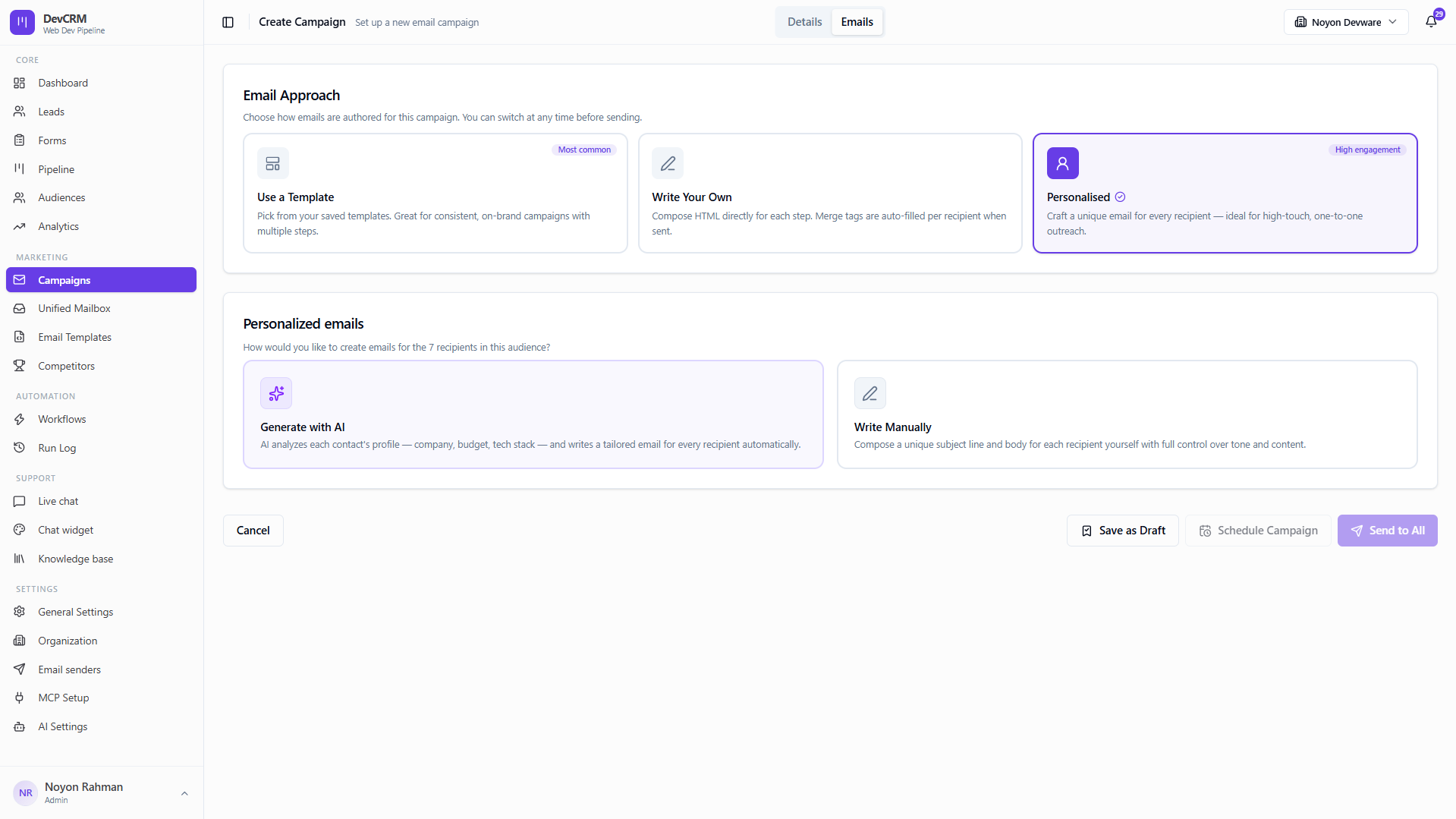
Personalized — manual
Write personalized variants manually when AI is not needed.
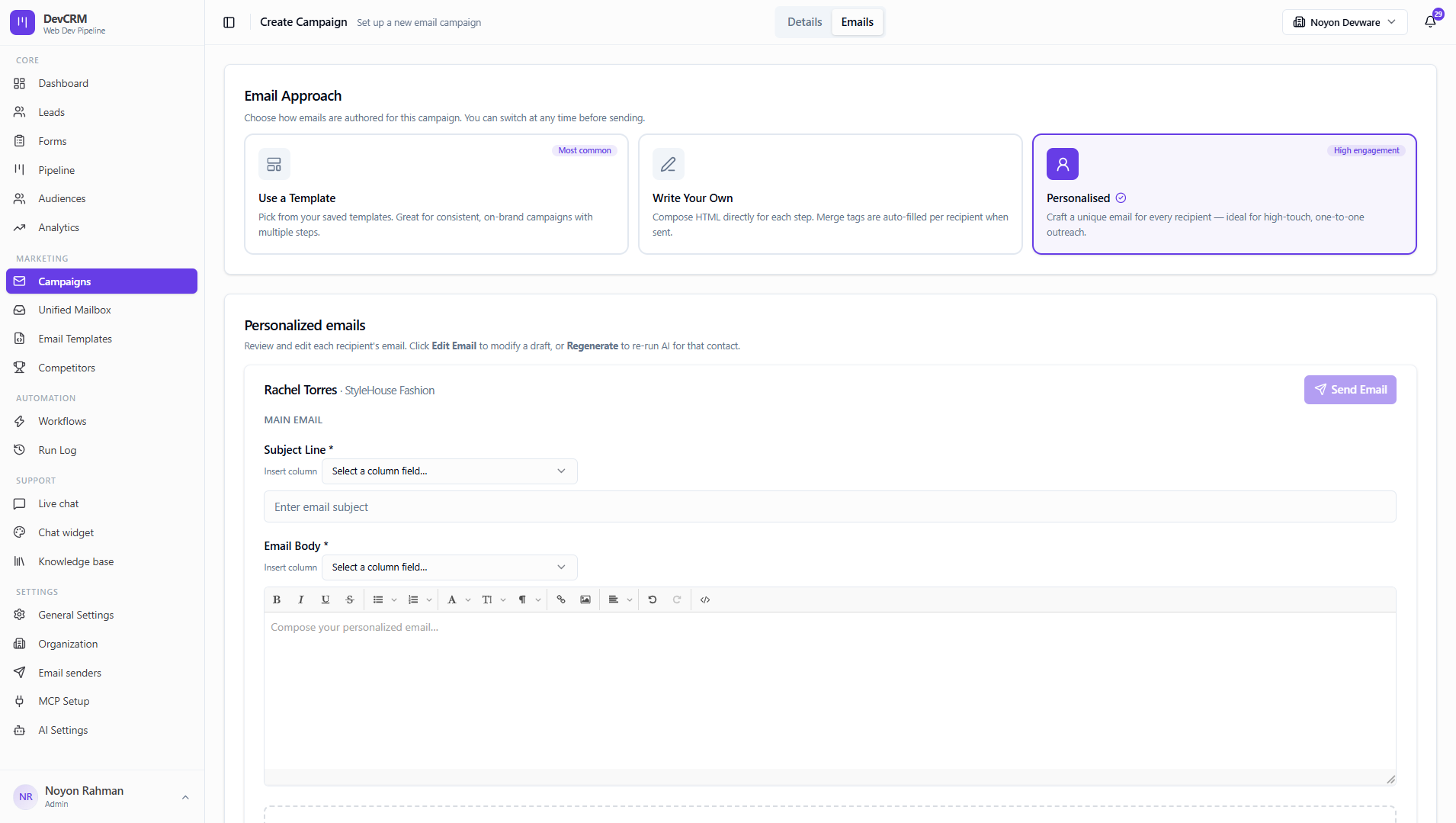
Follow-up emails
Add follow-up steps with delays so non-responders get a second or third touch.
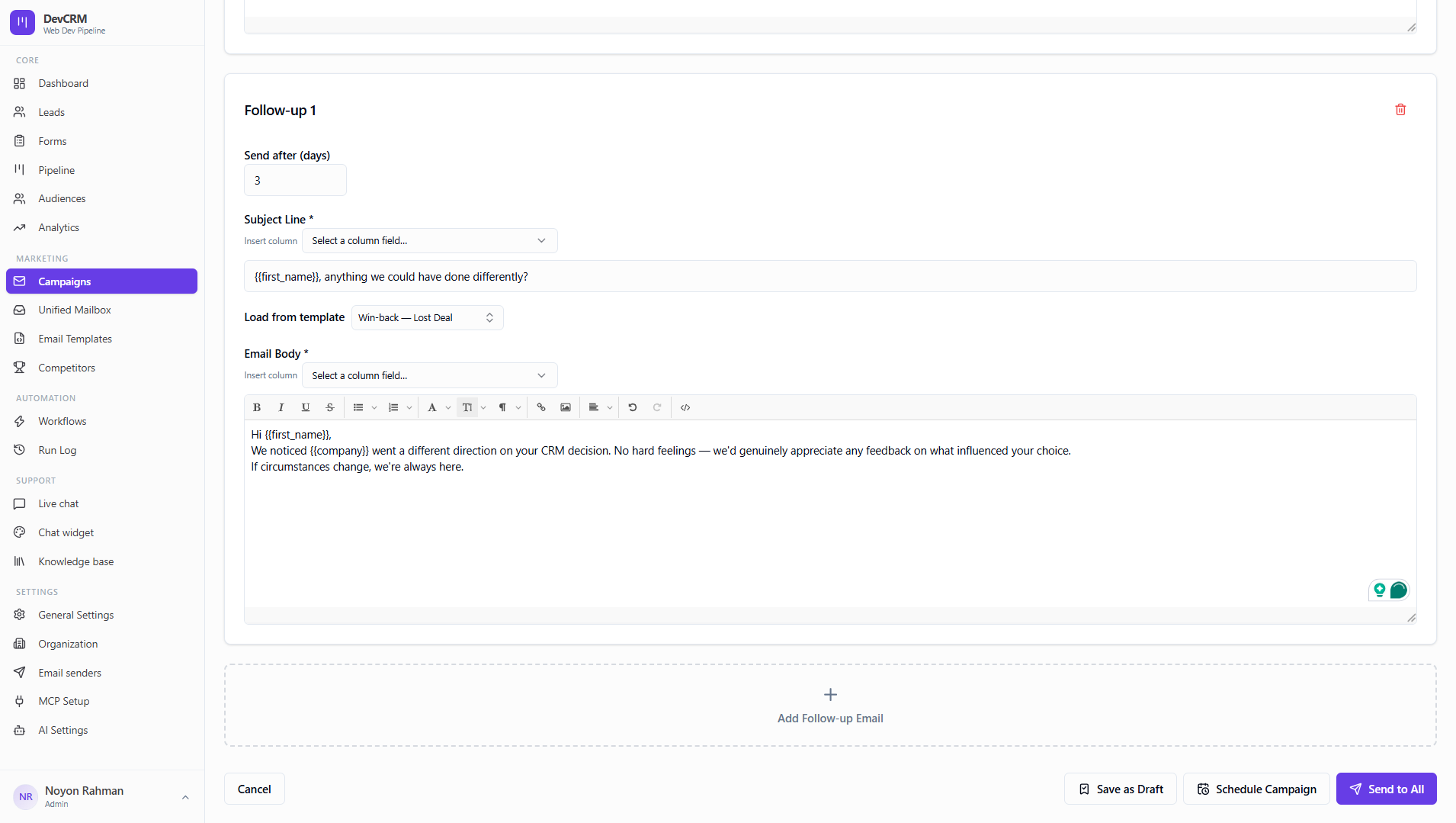
Preview the audience before execute or schedule. Active and scheduled status is controlled by send/schedule actions — not by editing campaign fields alone.
Tips
- Use {{first_name}} and {{company}} tokens in subjects for higher open rates.
- Pause a campaign if you need to fix copy or sender limits mid-flight.
Ready to get started?
Create your workspace, invite your team, and start closing deals in minutes.
Open DevCRM