MCP Setup
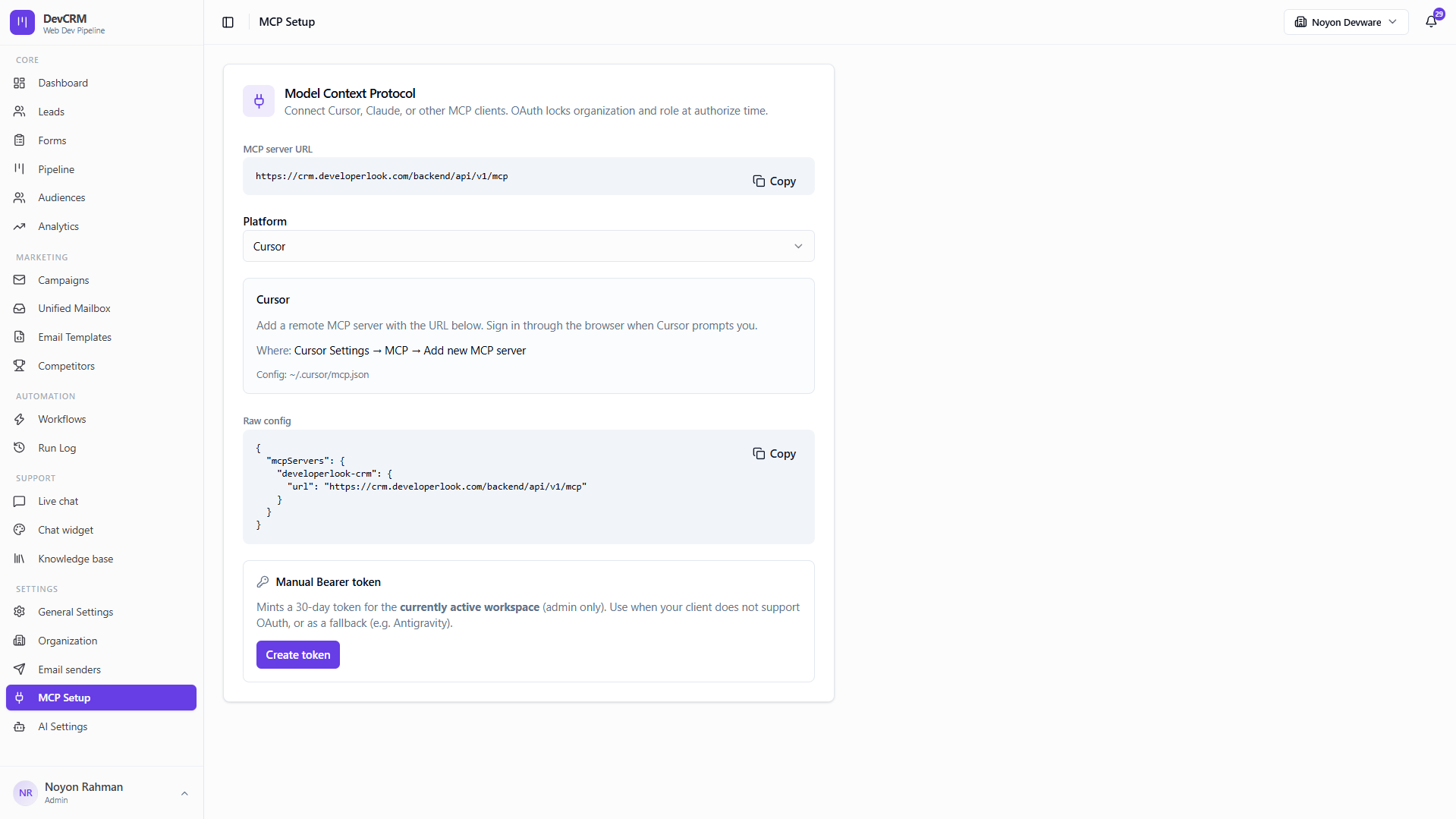
Connect Cursor, Claude, or other MCP clients to operate on your CRM with your signed-in organization and role.
Connect Cursor
Step 1: Copy the MCP URL
Server URL: https://crm.developerlook.com/backend/api/v1/mcp
Step 2: Add remote MCP in Cursor
Cursor Settings → MCP → Add new MCP server. Paste the URL and sign in through the browser when prompted. OAuth locks organization and role at authorize time.
Step 3: Optional bearer token
Admins can mint a 30-day Manual Bearer token for the active workspace when a client does not support OAuth.
Example Cursor mcp.json entry uses mcpServers.developerlook-crm.url pointing at the MCP server URL above.
Tips
- Prefer OAuth over long-lived tokens when possible.
- Re-authorize after switching organizations so tools target the correct workspace.
Ready to get started?
Create your workspace, invite your team, and start closing deals in minutes.
Open DevCRM