Integrations
Connect third-party tools to enrich and import leads directly into your workspace. Currently supports Apollo.io with more integrations coming.

Apollo.io
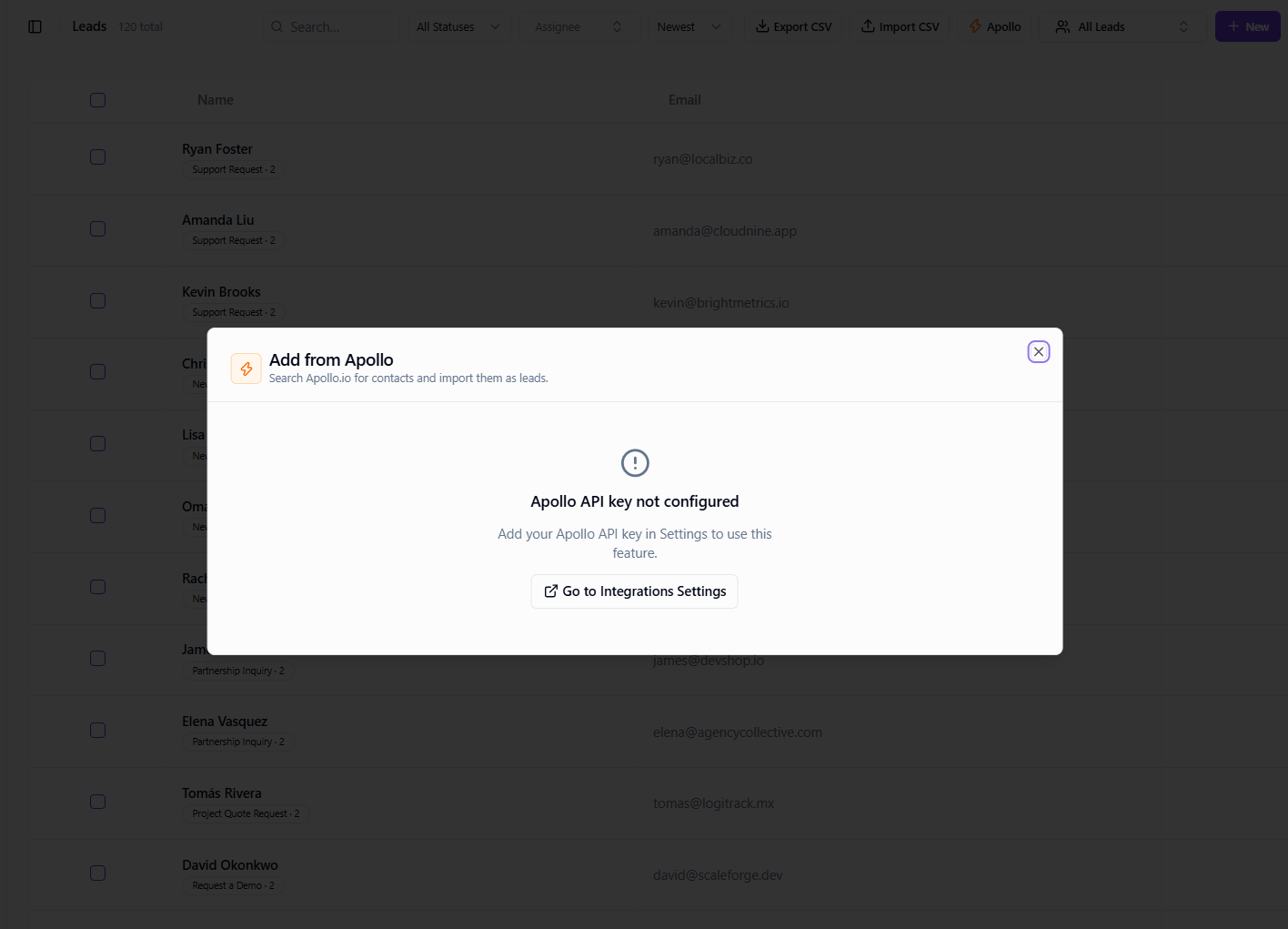
Connect your Apollo.io account to search and import enriched leads — including verified emails and company data — directly into the CRM. Once connected, the Add from Apollo action appears on the Leads page.
Step 1: Open Integrations
Go to Settings → Organization → Integrations and locate the Apollo.io card.
Step 2: Enter your Apollo API key
Paste your Apollo.io API key and click Connect. The key is stored encrypted and never exposed to the browser after saving.
Step 3: Search and import leads
Navigate to Leads and click Add from Apollo. Search by name, company, title, or location. Select contacts and click Import to create them as leads in your workspace.
What data is imported
Name & email
First name, last name, and verified work email are always imported.
Company & title
Organization name and job title are mapped to the lead's company and title fields.
Phone
Direct phone number if available in Apollo's data.
LinkedIn
LinkedIn profile URL is stored in the lead record for quick outreach.
Tips
- Your Apollo API key is found under Apollo Settings → Integrations → API Keys.
- Imported leads are deduplicated by email — re-importing the same contact will not create a duplicate.
- Set a default Audience when importing so leads are instantly available for campaigns.
Ready to get started?
Create your workspace, invite your team, and start closing deals in minutes.
Open DevCRM