Leads
Create, import, enrich, and organize every contact. The Leads table is the source of truth for pipeline cards, audiences, and campaigns.
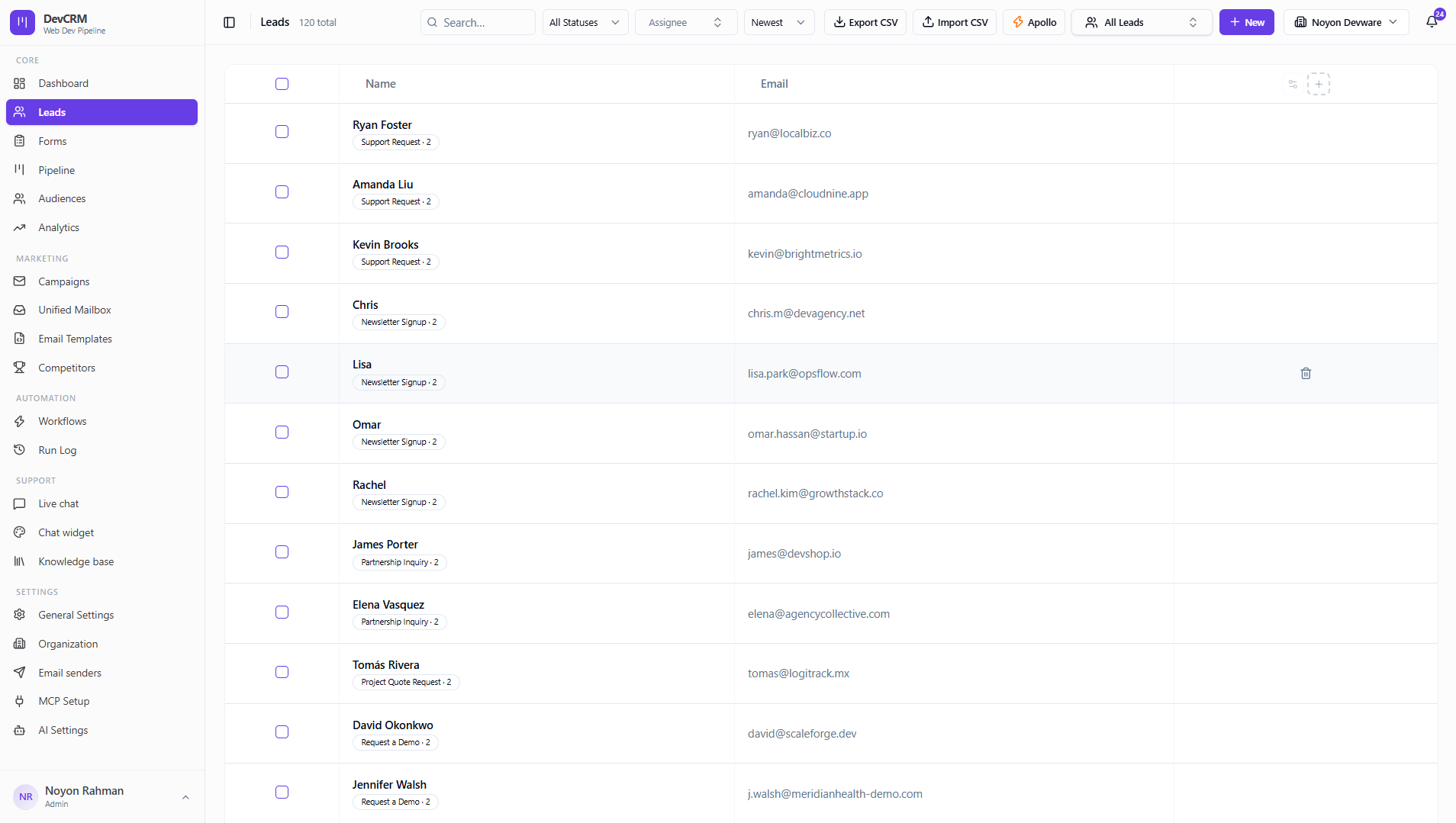
Browse and filter
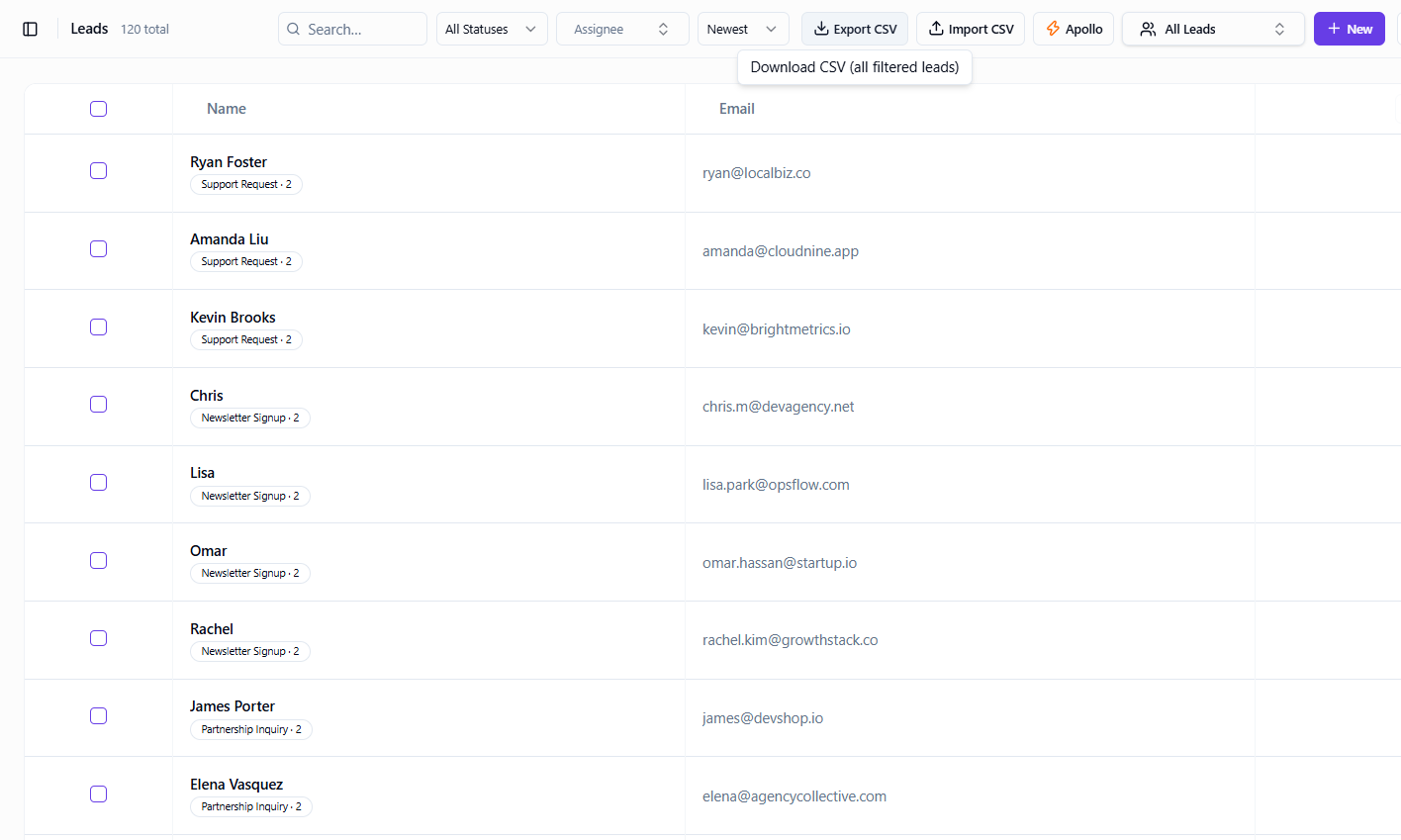
Use Search leads, All Statuses, Assignee, and sort (e.g. Newest) to narrow the table. Download CSV exports the current filtered set. Column settings let you show form fields or custom columns.
Add a lead manually
Step 1: Open New lead
On Leads, click New lead.
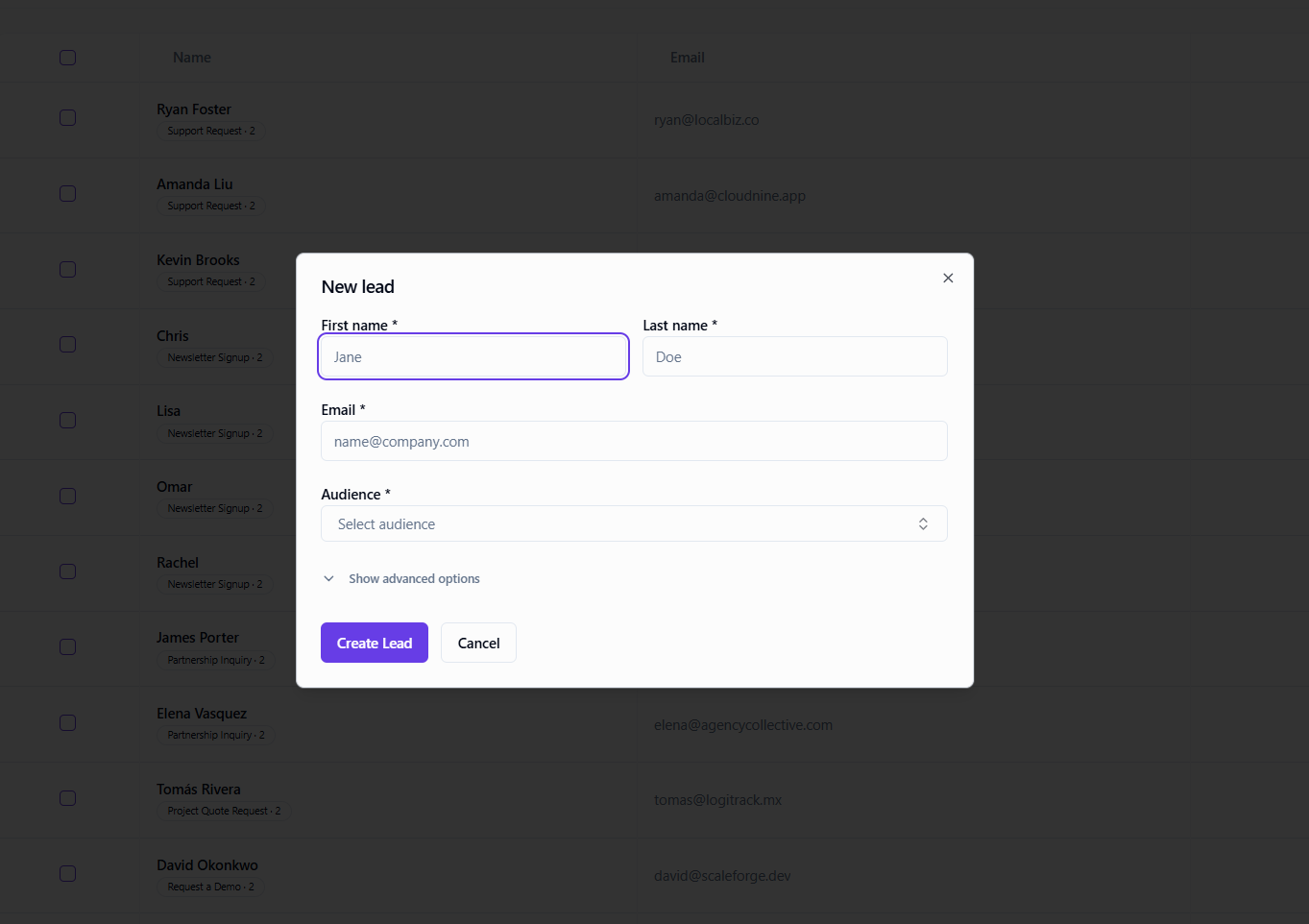
Step 2: Fill required fields
Enter the contact basics, then choose which audience list they belong to.
First name / Last name
Required. Used in personalization tokens like {{first_name}}.
Email
Required. Primary address for campaigns and mailbox matching.
Audience
Required. Assigns the lead to a list used by campaigns and filters.
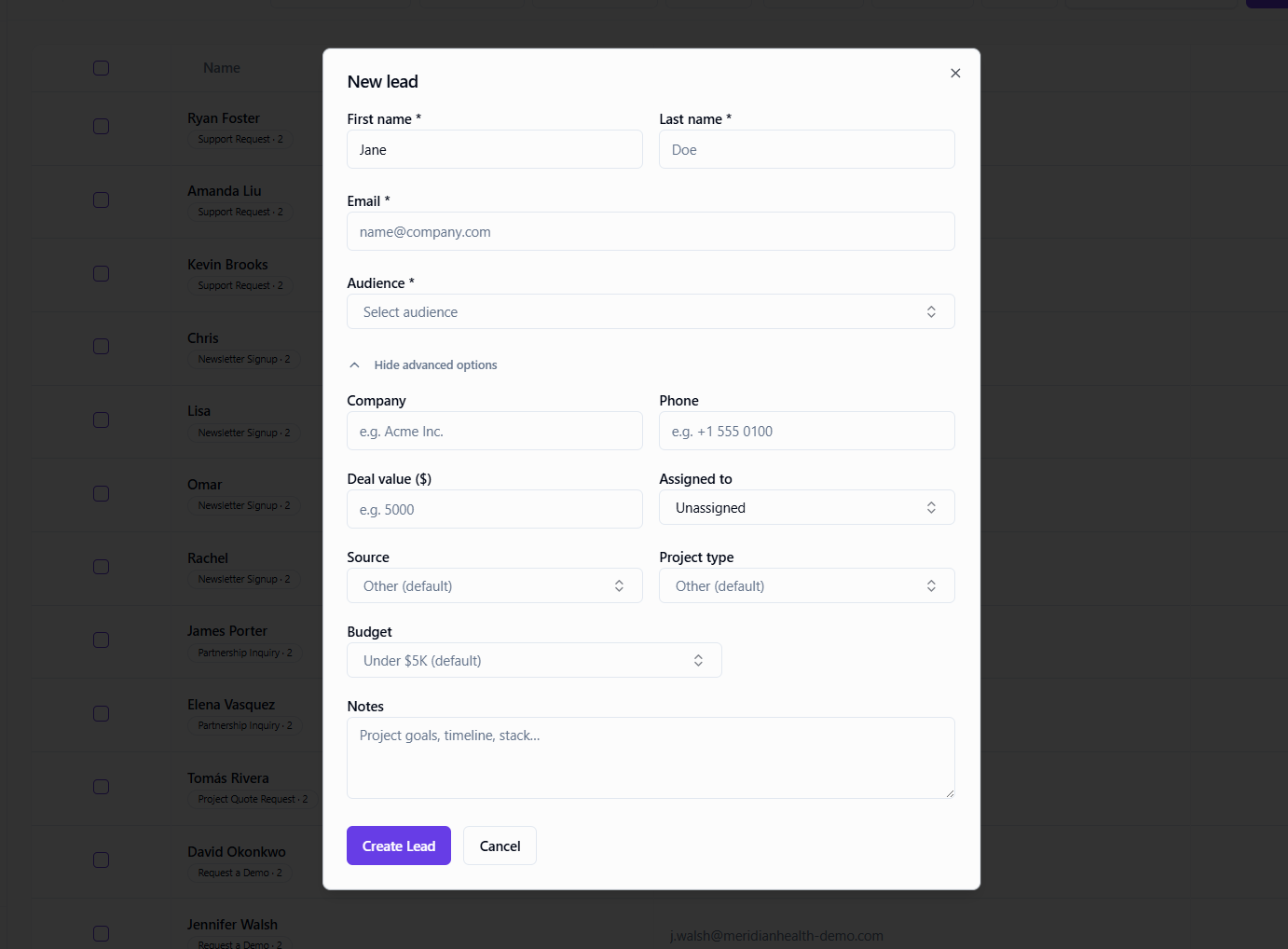
Step 3: Optional advanced fields
Click Show advanced options for company, phone, deal value, assignee, source, project type, budget, and notes.
Deal value ($)
Feeds pipeline totals and analytics average deal size.
Assigned to
Owner for pipeline filters and workload.
Source
e.g. Website, Referral, LinkedIn — used in Analytics win rate by source.
Step 4: Create Lead
Click Create Lead. The contact appears in the table and on the Pipeline board in the default stage.
Import CSV
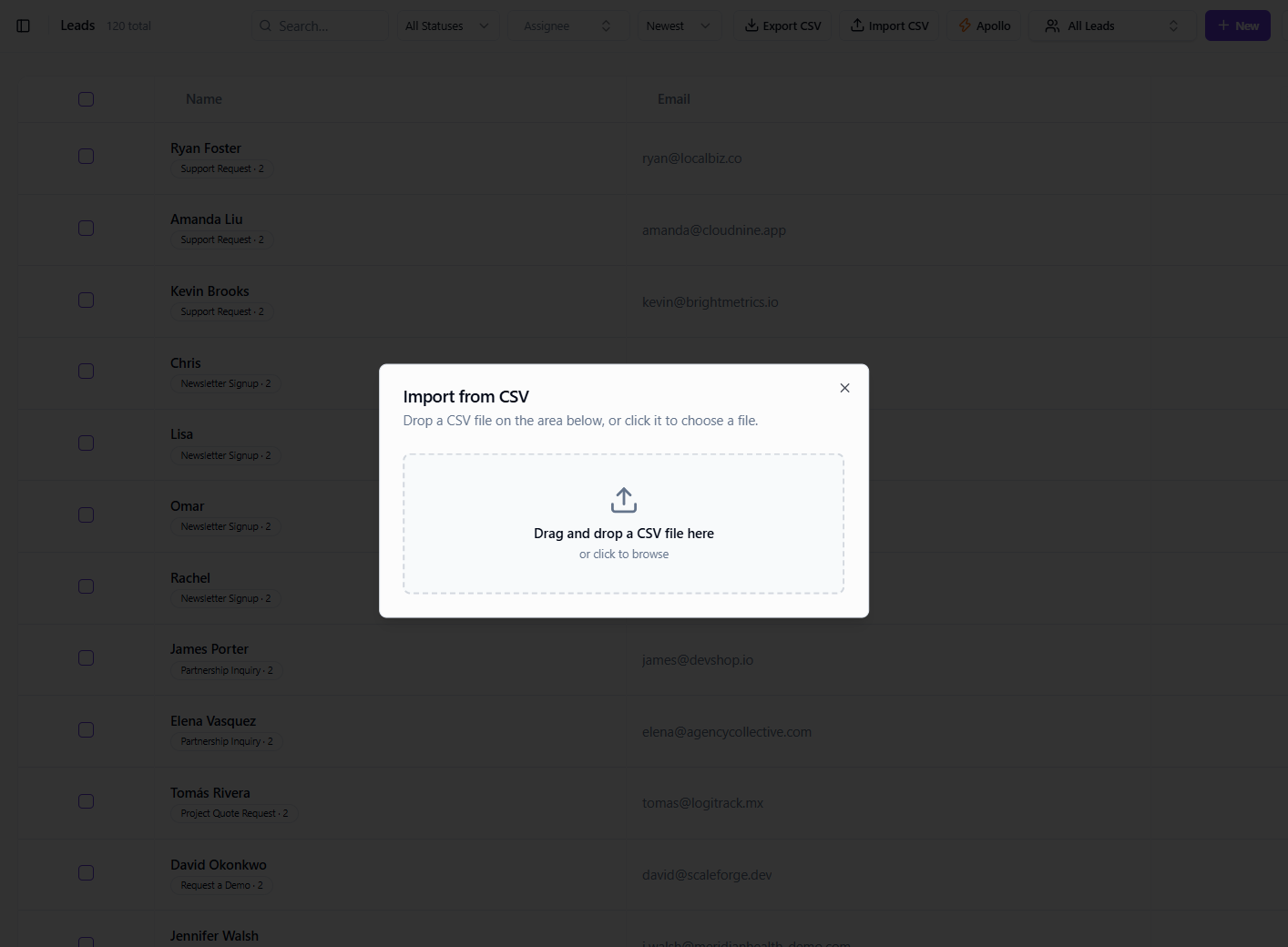
Import from file
Click Import CSV, upload your file, map columns to lead fields, and confirm the import.
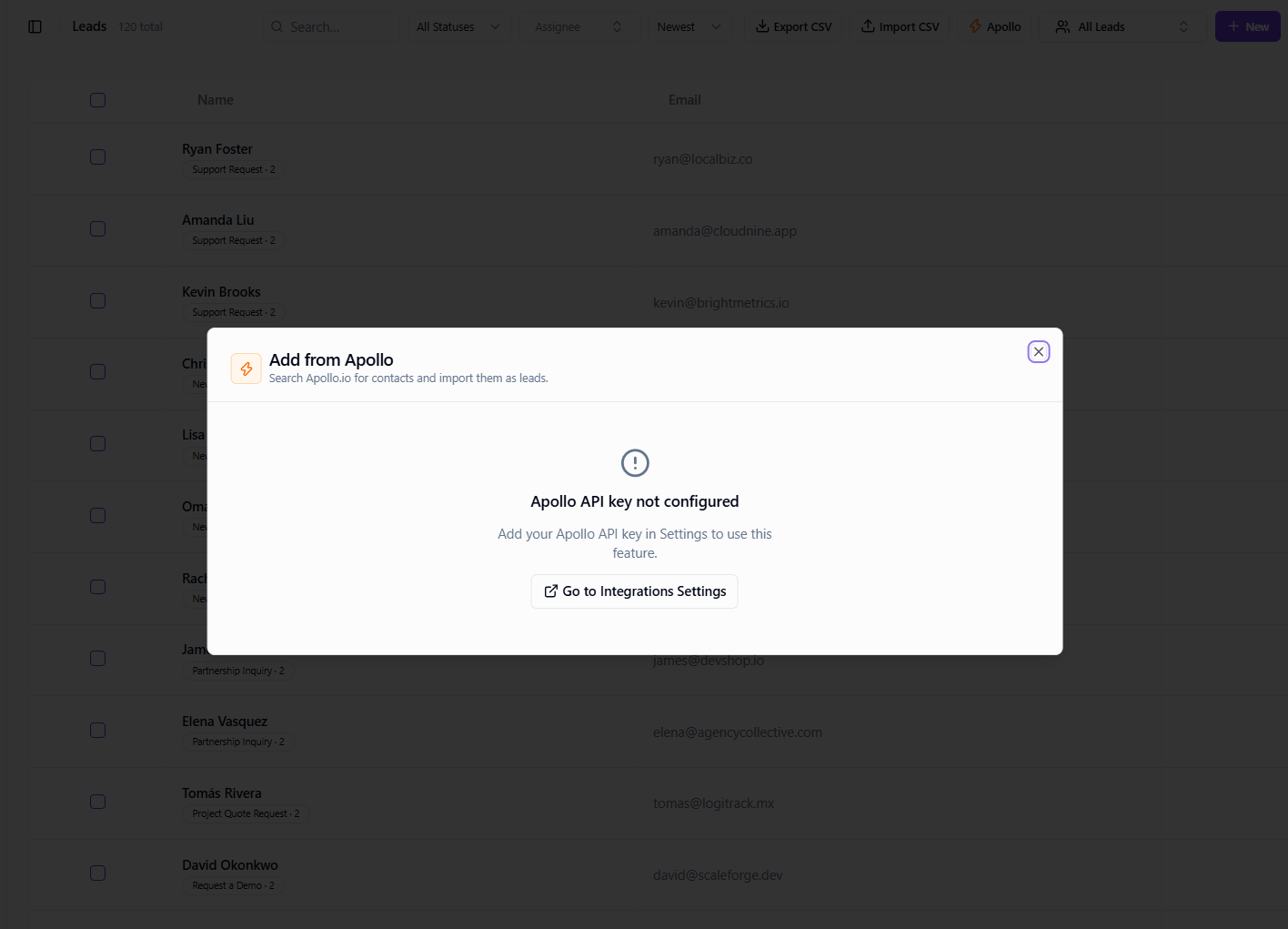
Add from Apollo
Enrich and import
Click Add from Apollo to search prospects and enrich emails into your workspace (API key required in integrations).
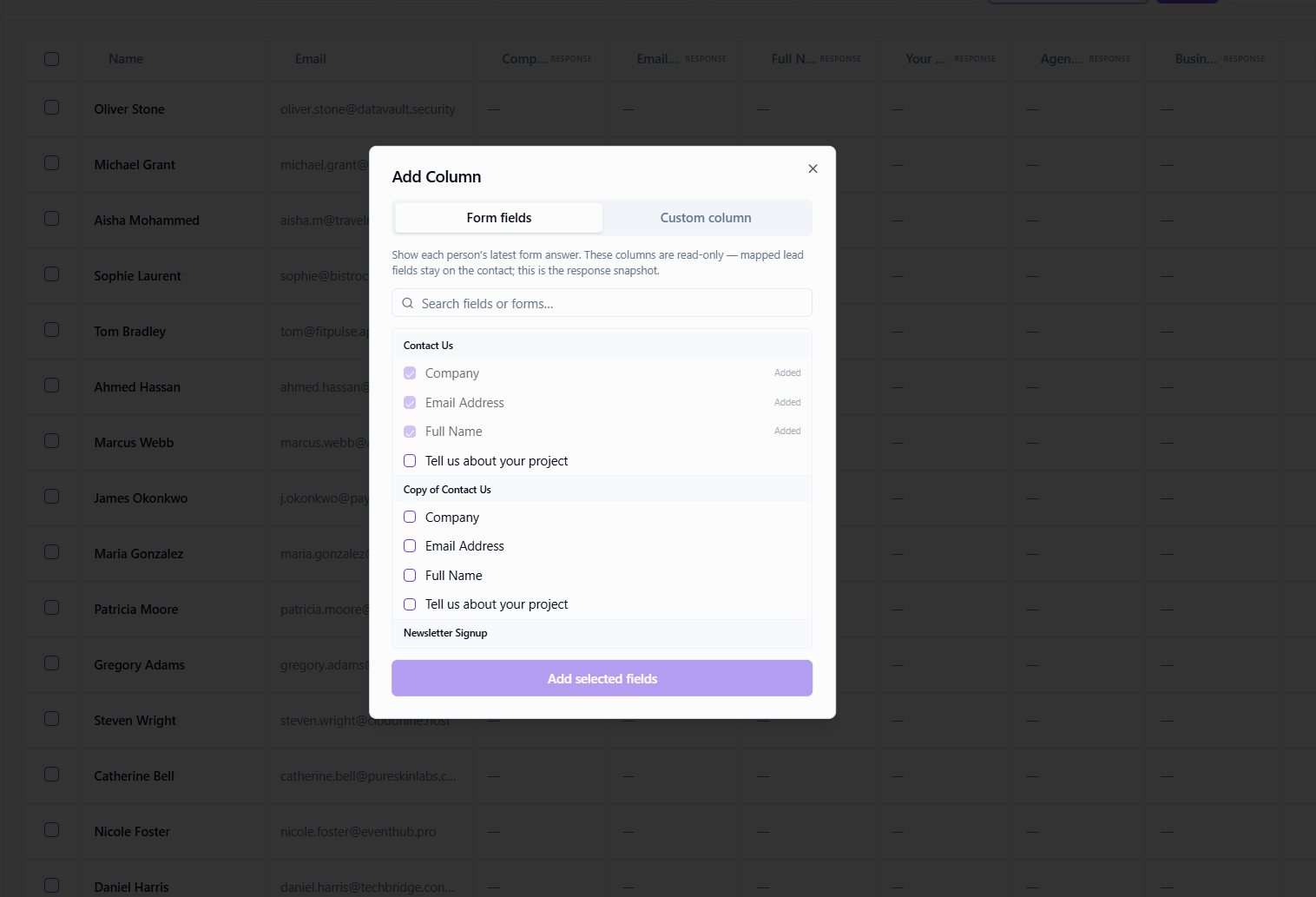
Customize columns
Form fields or custom columns
Use Column settings to surface form submission fields or add custom columns for your process.
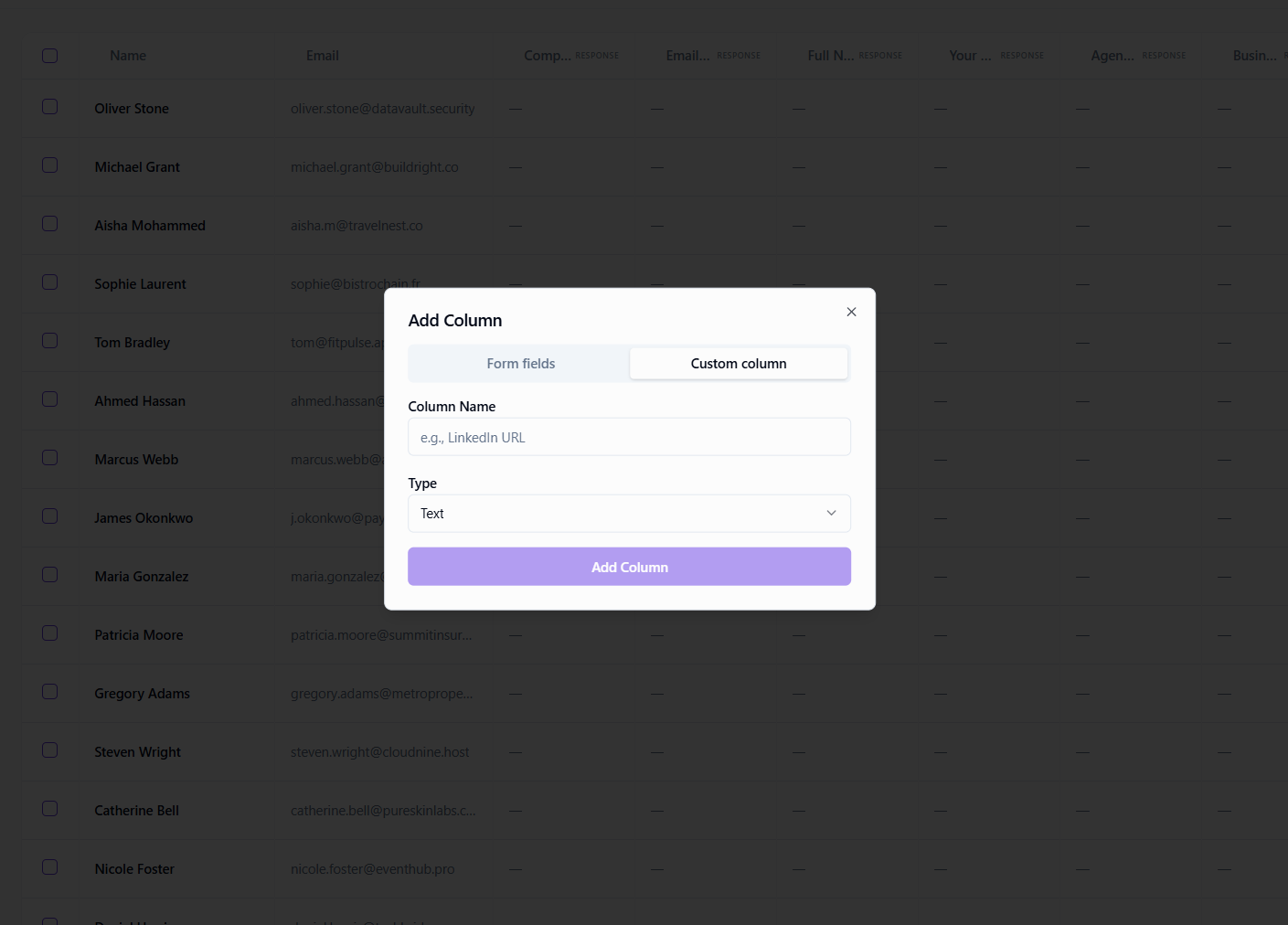
Custom column
Create a custom column when form fields are not enough.
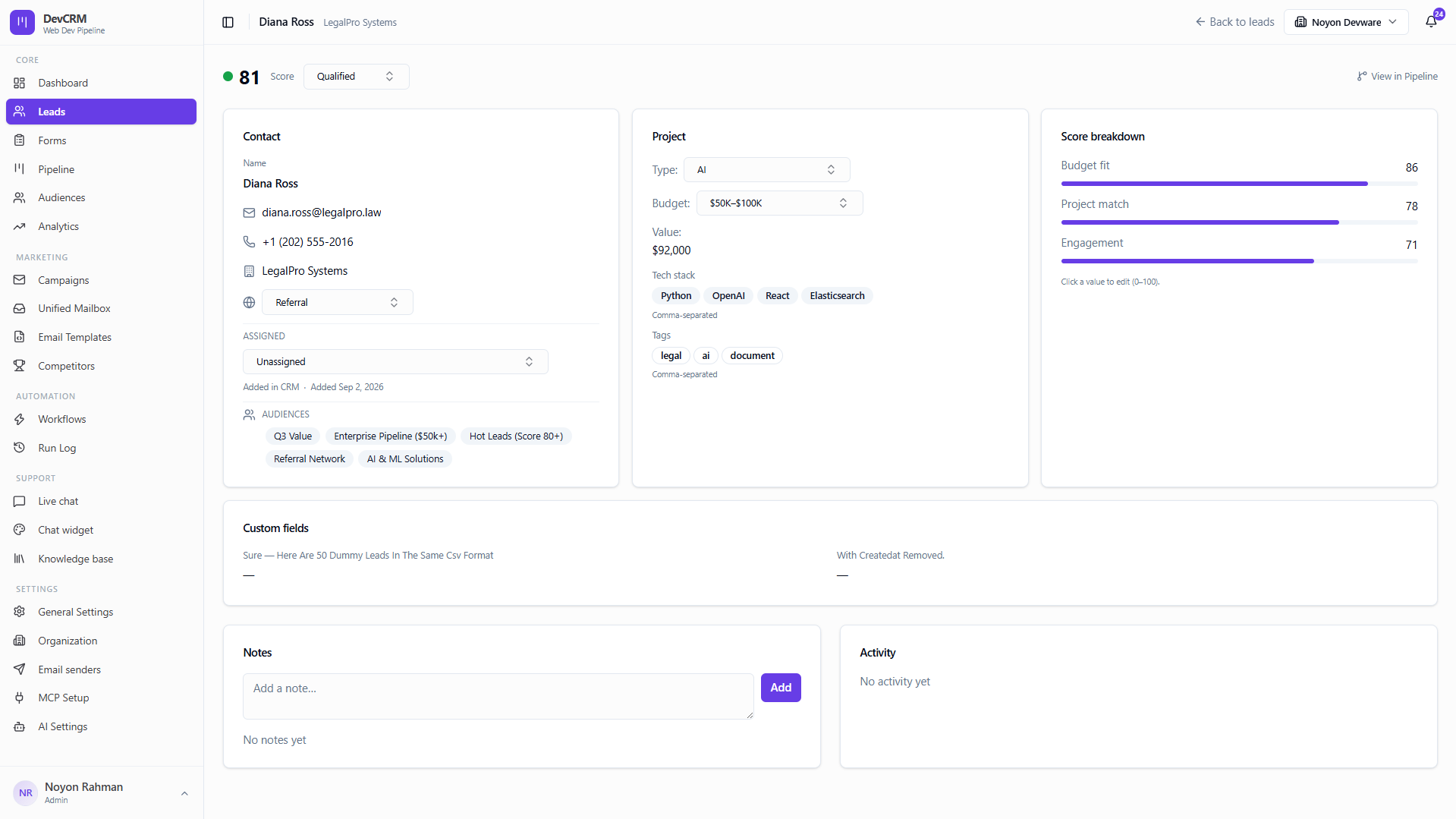
Lead detail page
Open a lead
Click a row to open the full lead record — profile, stage, score, notes, activities, emails, and audience membership.
Export
Download CSV
Click Download CSV to export all leads matching your current filters.
Tips
- Always set Audience when creating leads so campaigns can target the right list.
- Deal value and Source improve Dashboard and Analytics accuracy.
Ready to get started?
Create your workspace, invite your team, and start closing deals in minutes.
Open DevCRM