Forms
Build publishable forms for demos, contact, quotes, and support. Submissions create leads and can feed workflows and chat.
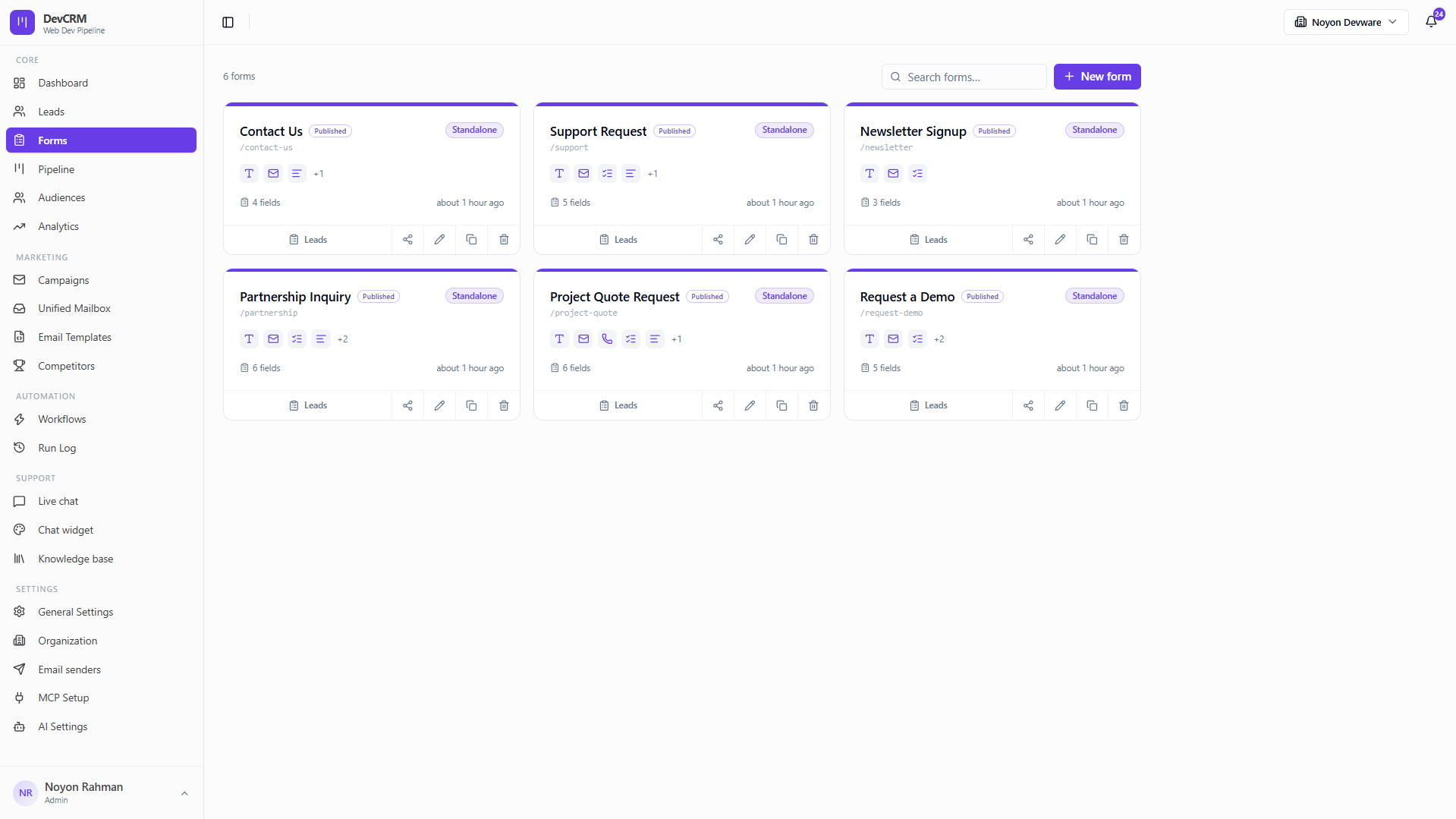
Create a form
Step 1: Start a new form
Open Forms and create a new form. The builder opens in Draft until you publish.
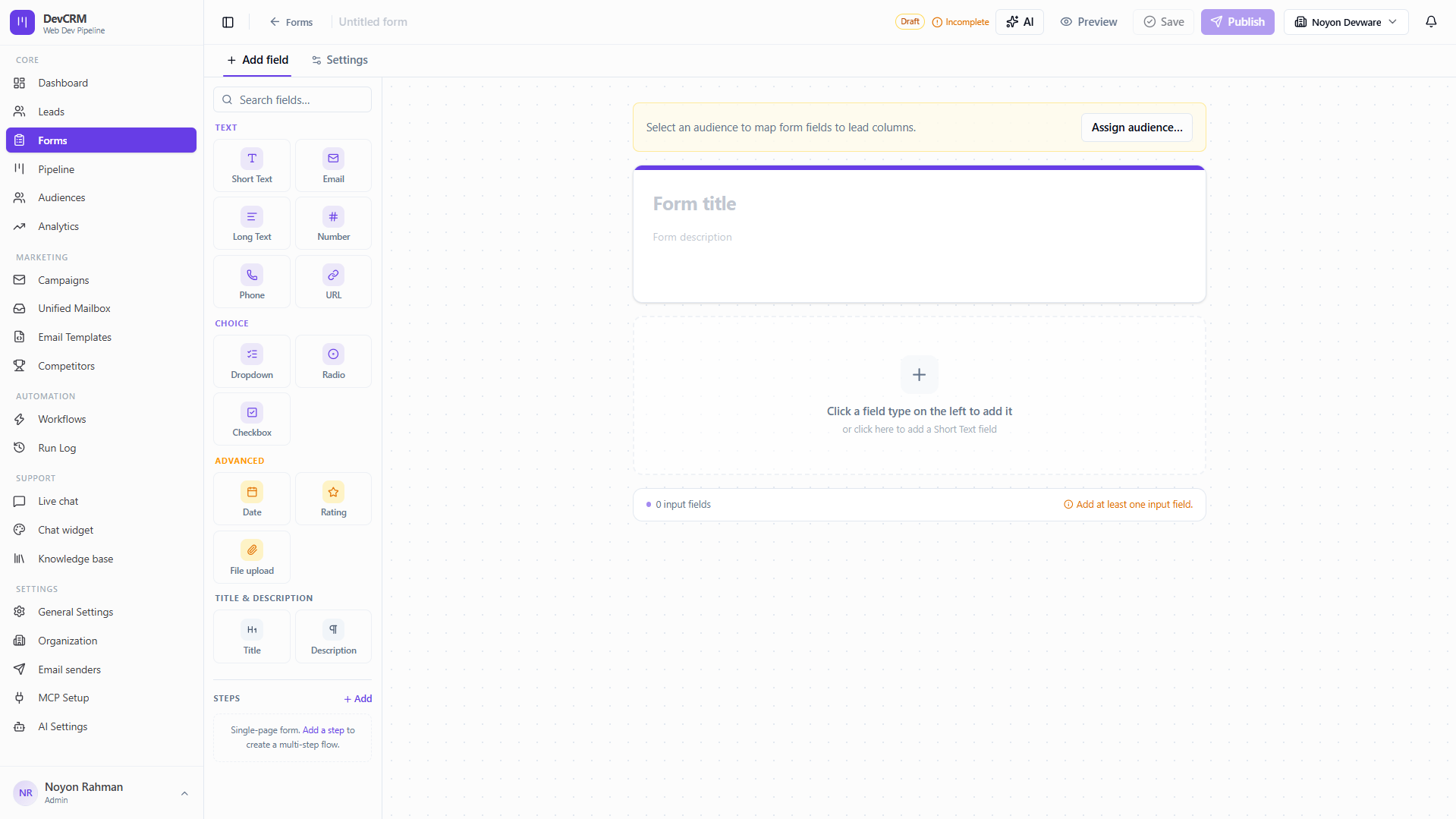
Step 2: Assign an audience
Use Assign audience so form fields map to lead columns and submissions land in the right list.
Step 3: Add fields
From Add field, drag or click Text, Email, Phone, Dropdown, Checkbox, Date, Rating, File upload, and more. Add steps for multi-step flows.
Step 4: Configure settings
Open the Settings tab for slug, thank-you behavior, and submission options.
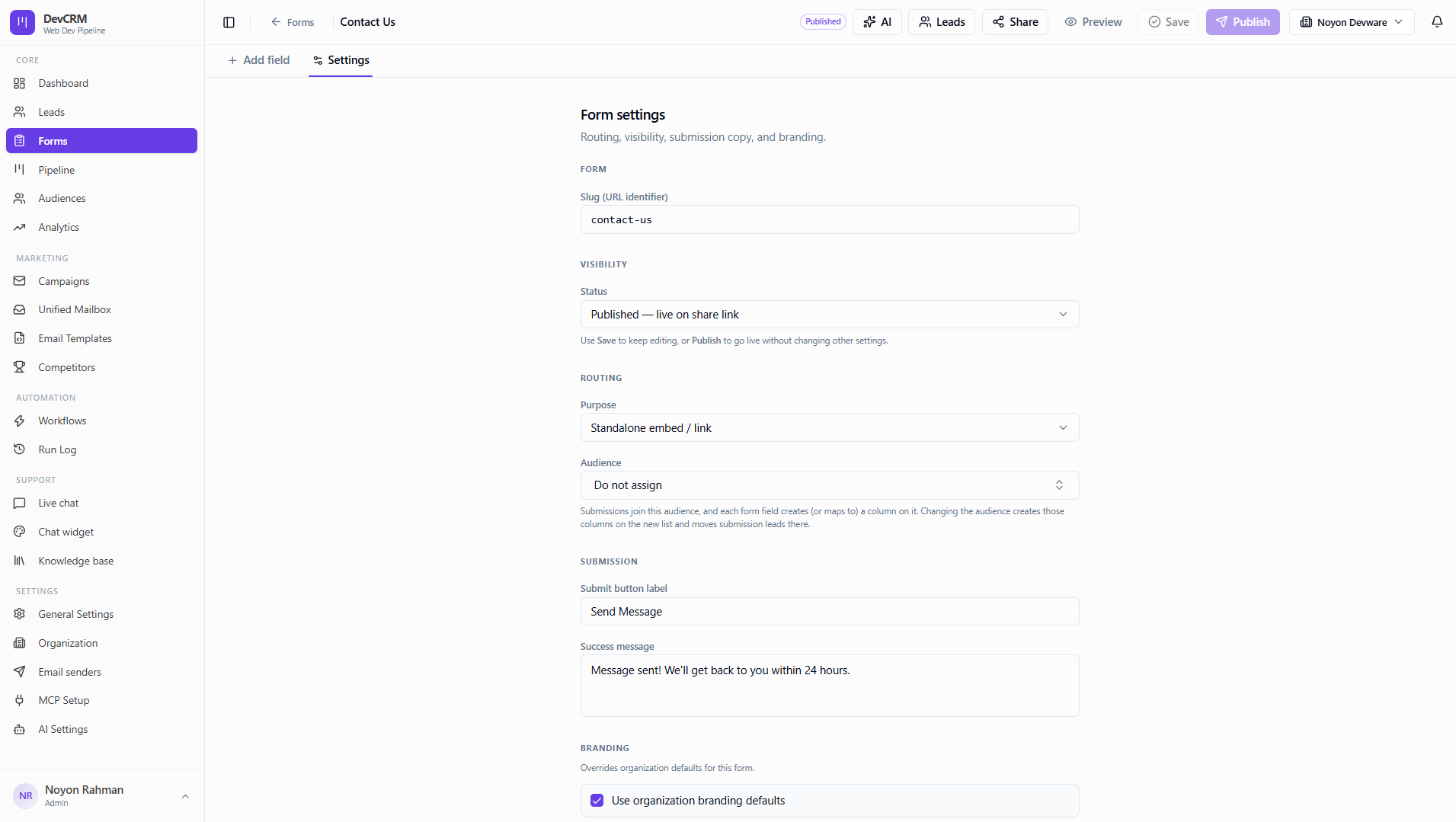
Step 5: Preview and Publish
Use Preview, then Publish when the form is complete.
Share a form
Share link
Copy the public form URL for emails, ads, or social posts.
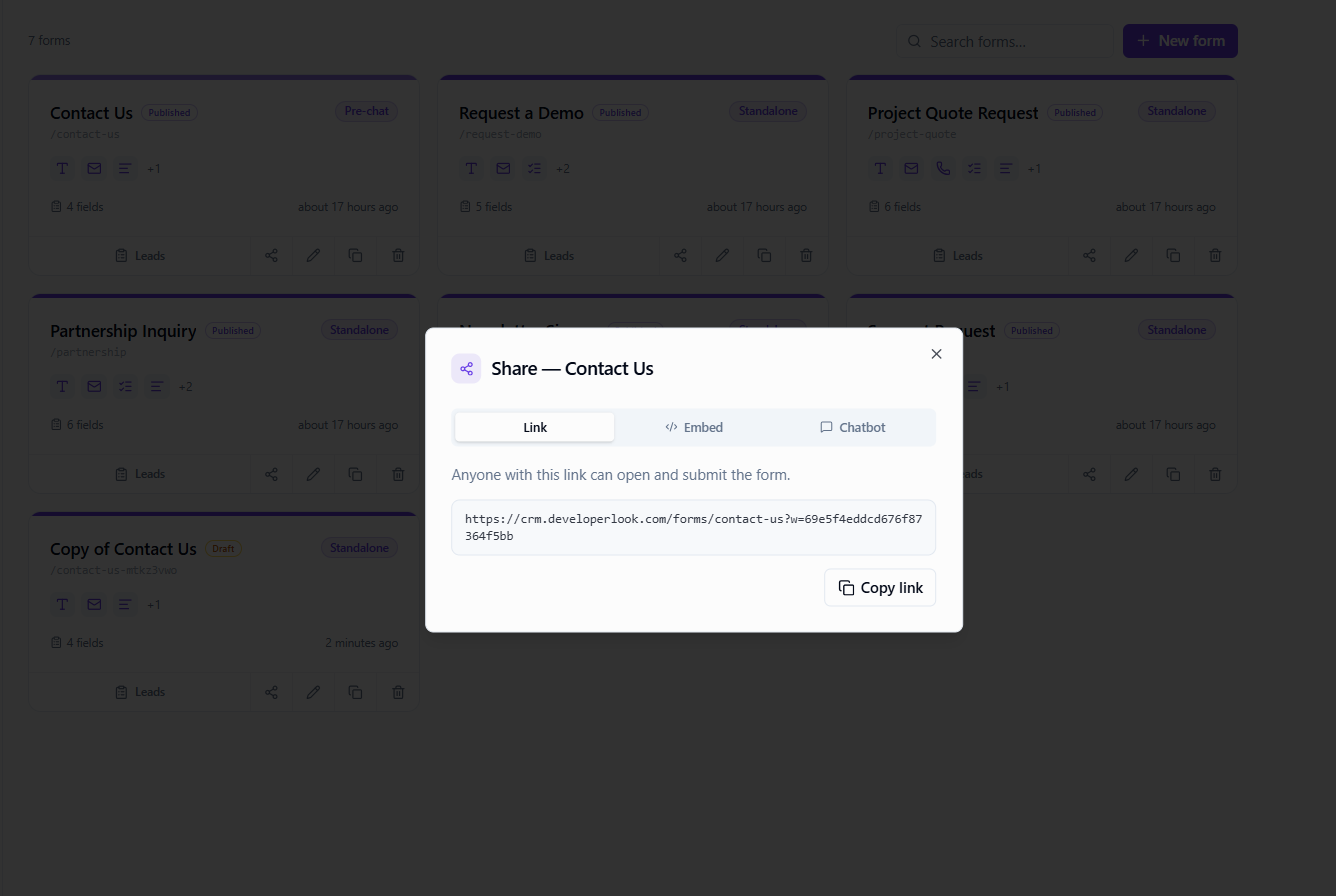
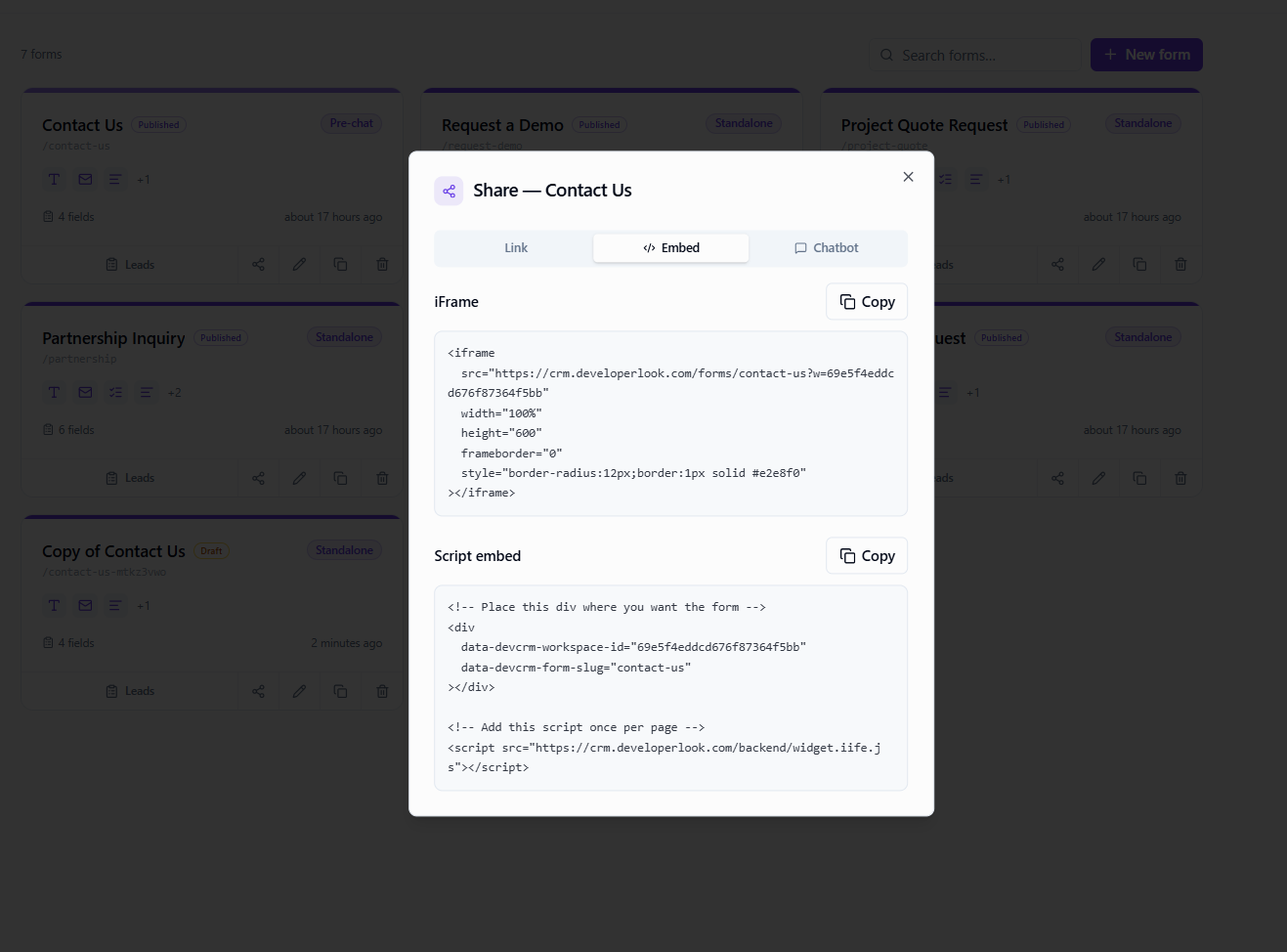
Embed
Paste the embed snippet on your website for an inline form.
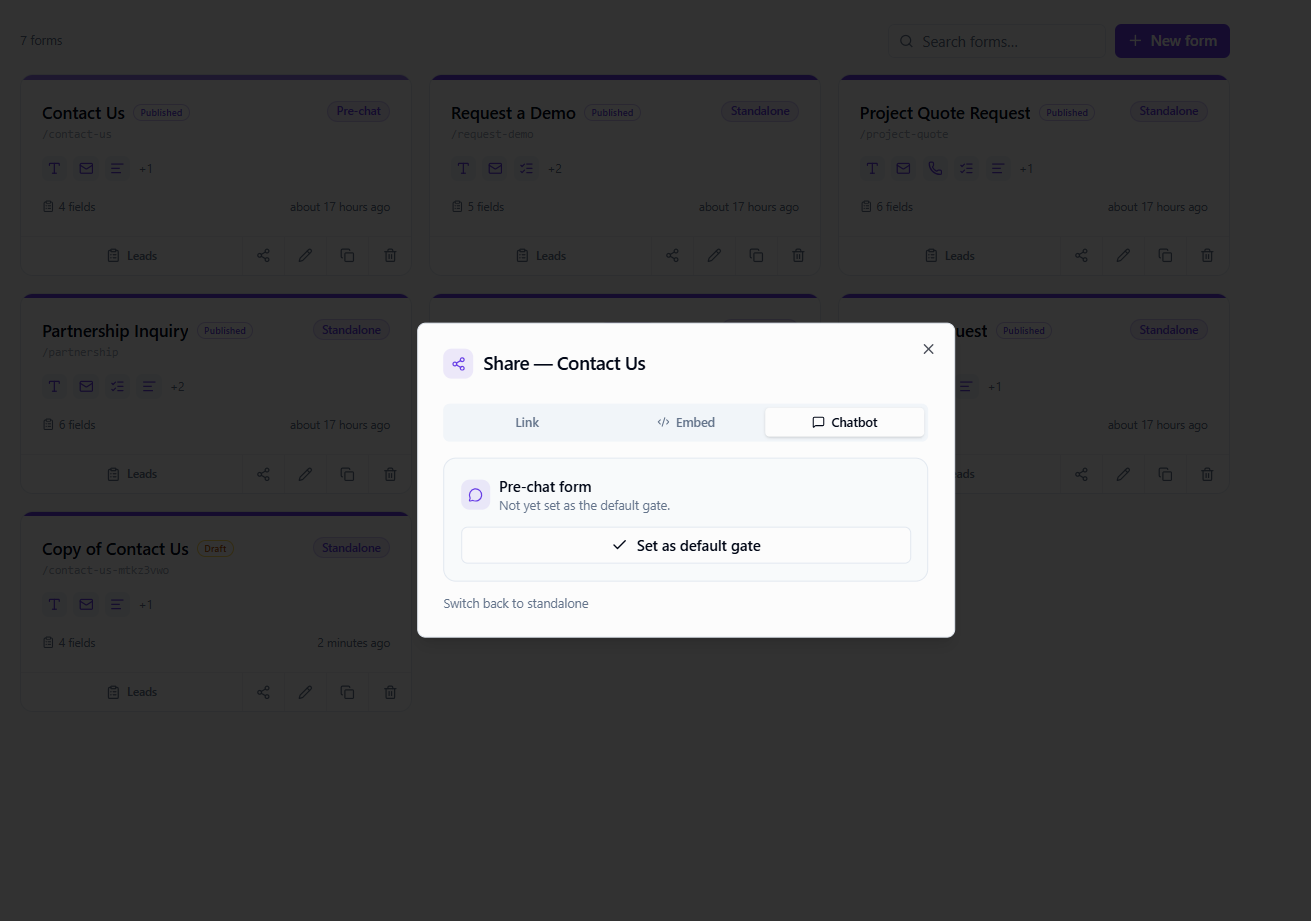
Chatbot / pre-chat
Attach a form to the chat widget so visitors can submit before or during a conversation.
Manage forms
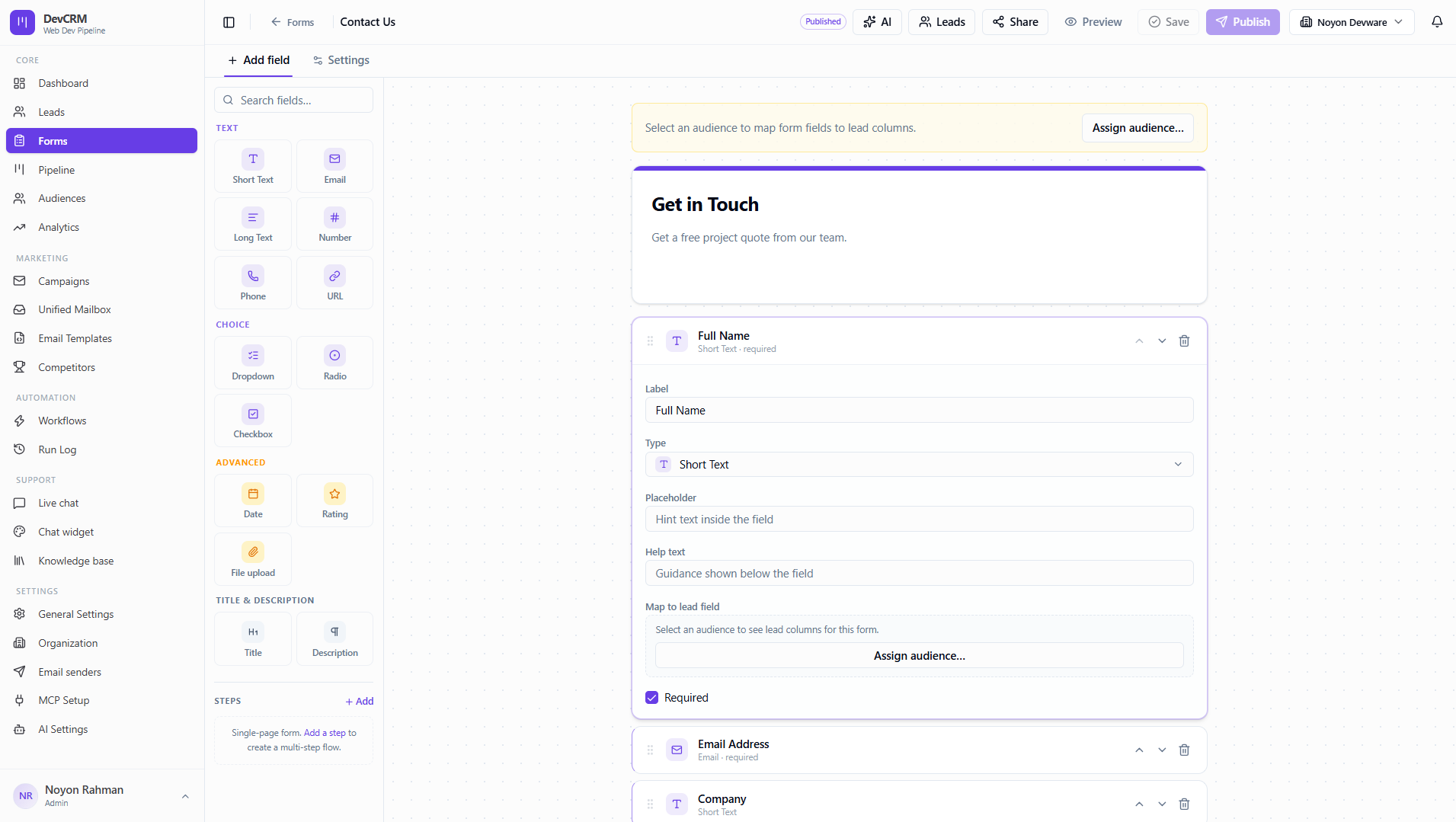
Edit
Open an existing form to change fields or settings.
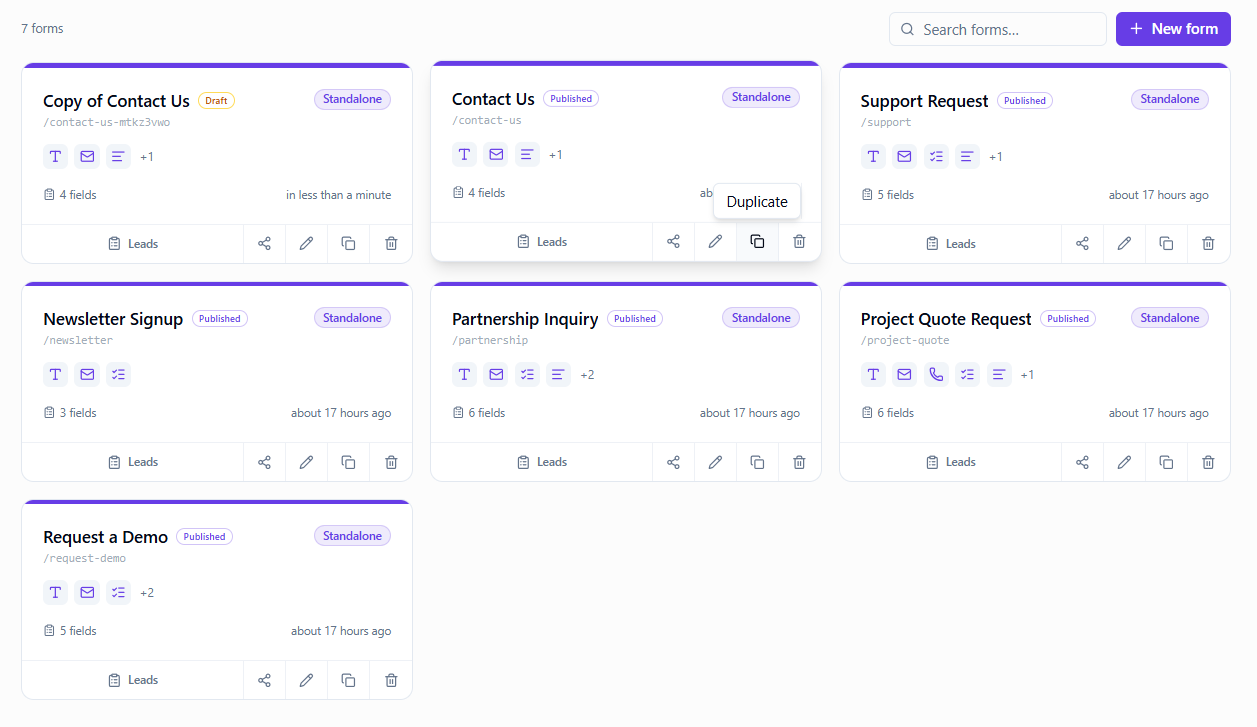
Duplicate
Duplicate a published form to create a draft variant quickly.
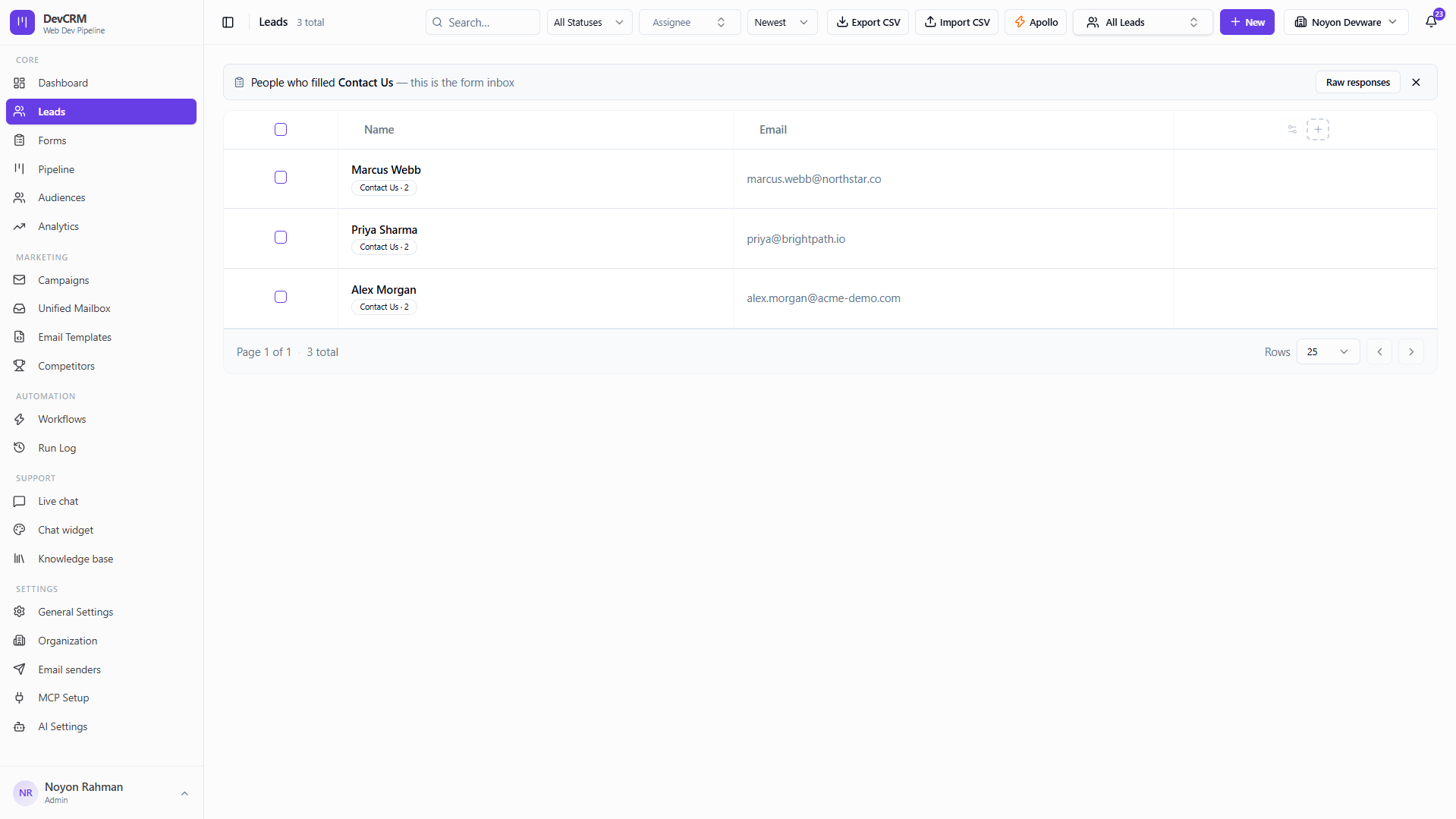
View submitted leads
Open submissions to jump into the leads that came from this form.
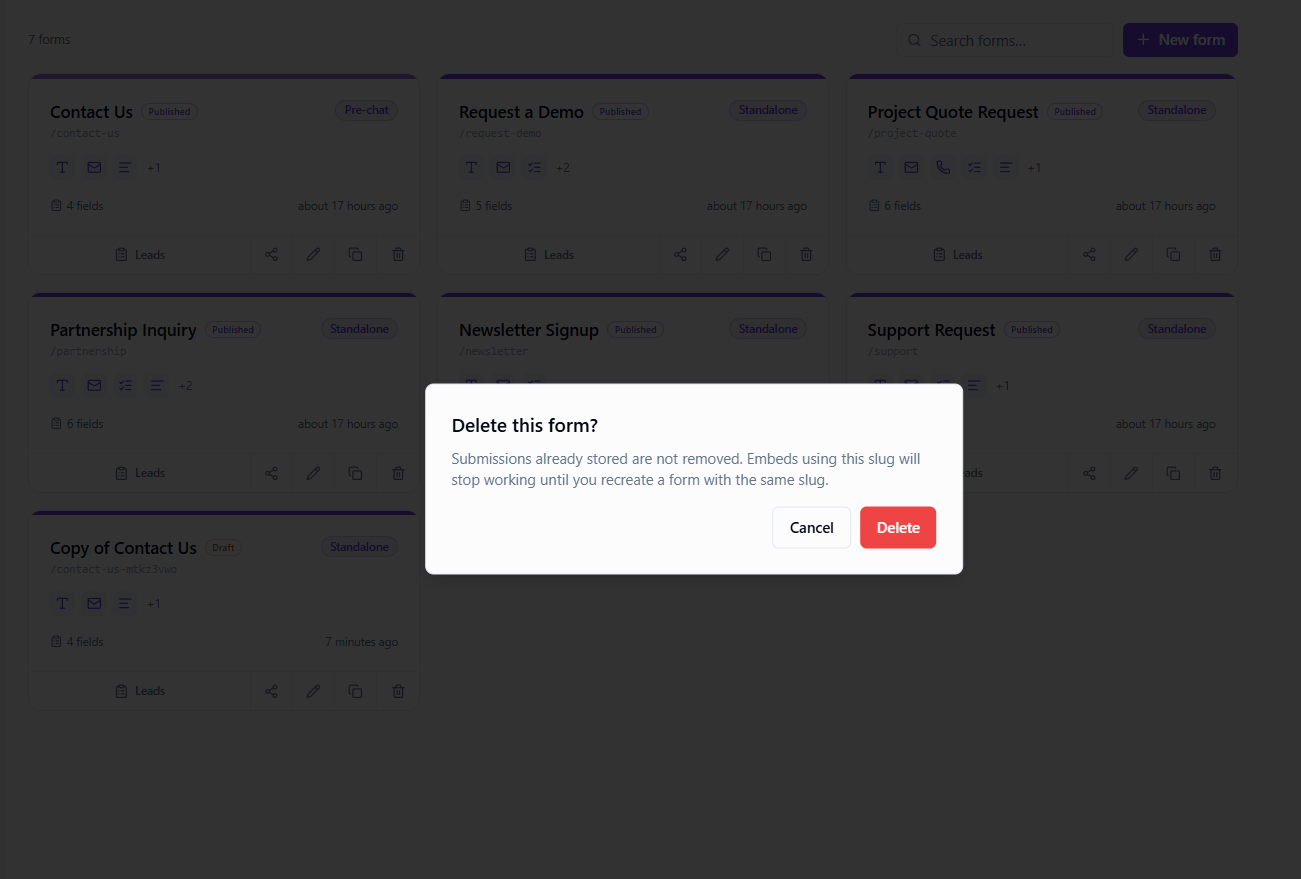
Delete
Delete unused drafts carefully — published forms may still receive traffic until removed from your site.
Tips
- Pair Form Submitted workflows with Demo or Contact forms for instant tagging and notifications.
- Keep at least one Email field so campaigns and mailbox can reach the lead.
Ready to get started?
Create your workspace, invite your team, and start closing deals in minutes.
Open DevCRM